Echo command for beginners
A simple echo command that repeats your text to get new users started with the basic structure and features of the command builder.
Creating your command
- Go to the commands section of your Kite dashboard and make a command with the name echo.
Adding arguments
- Now that you've created your command, go to the
Optionssection of your command builder and select the Command Arguments block. - Connect this block to the little purple dot of your command name.
- Inside the Command Arguments block settings, add these:
- Name -
text - Description -
text to echo - Argument Type - Text
- Argument Required - True
- Name -
note
Argument names can only be in lowercase and can't contain any special characters except an underscore (_).
If you want to add a space in an argument's name, use the underscore ( _ ).
Sending the message
- From the actions menu, select the Create Channel Message block.
- Set the target channel as
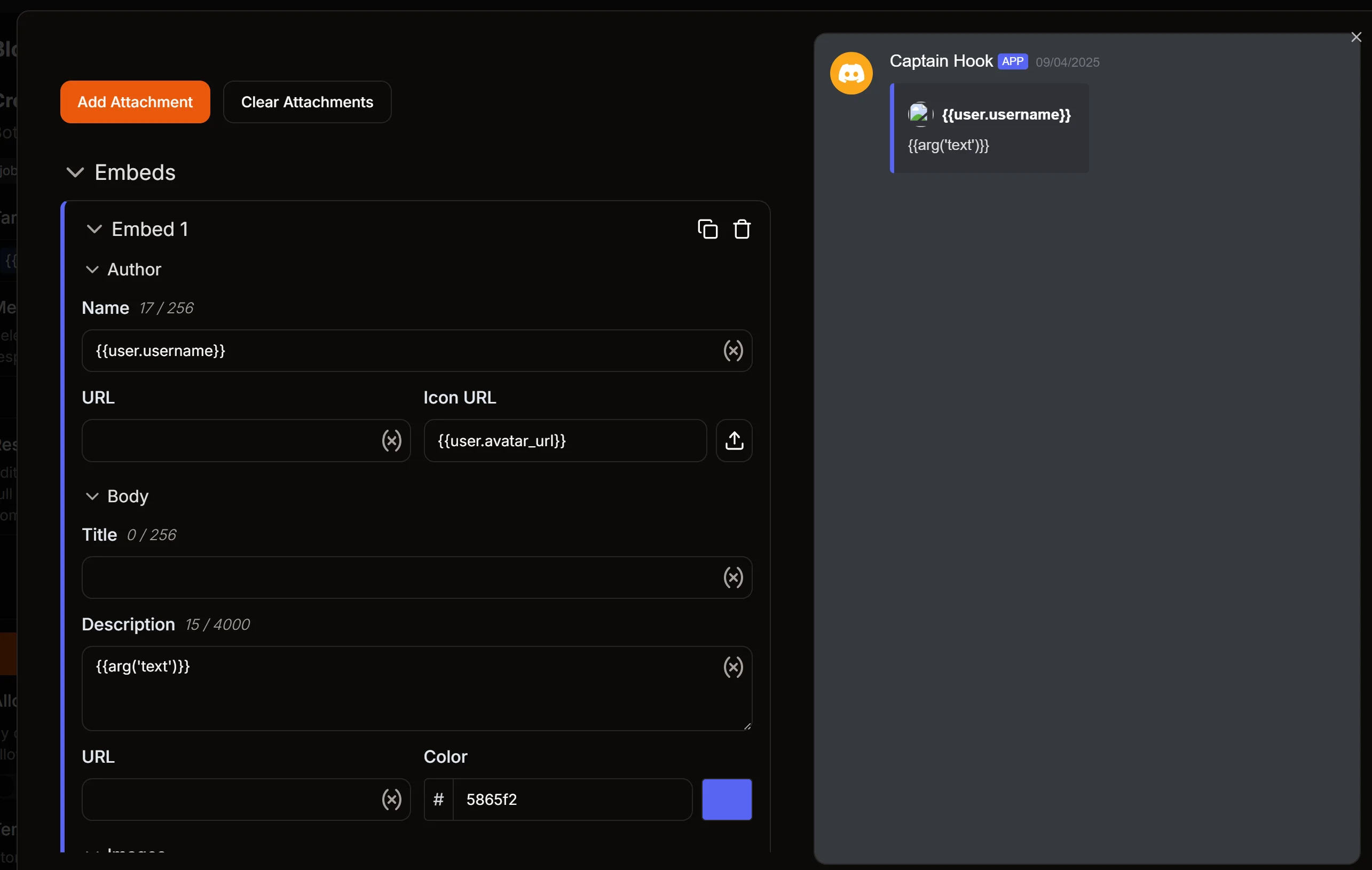
{{channel.id}} - Click Edit Message and then Add embed
- In the description box, put
{{arg('text')}} - For the Author section, put
{{user.username}}in the name field and{{user.avatar_url}}in the Icon URL field.
- In the description box, put
- Exit the message editor.
Acknowledging your command
info
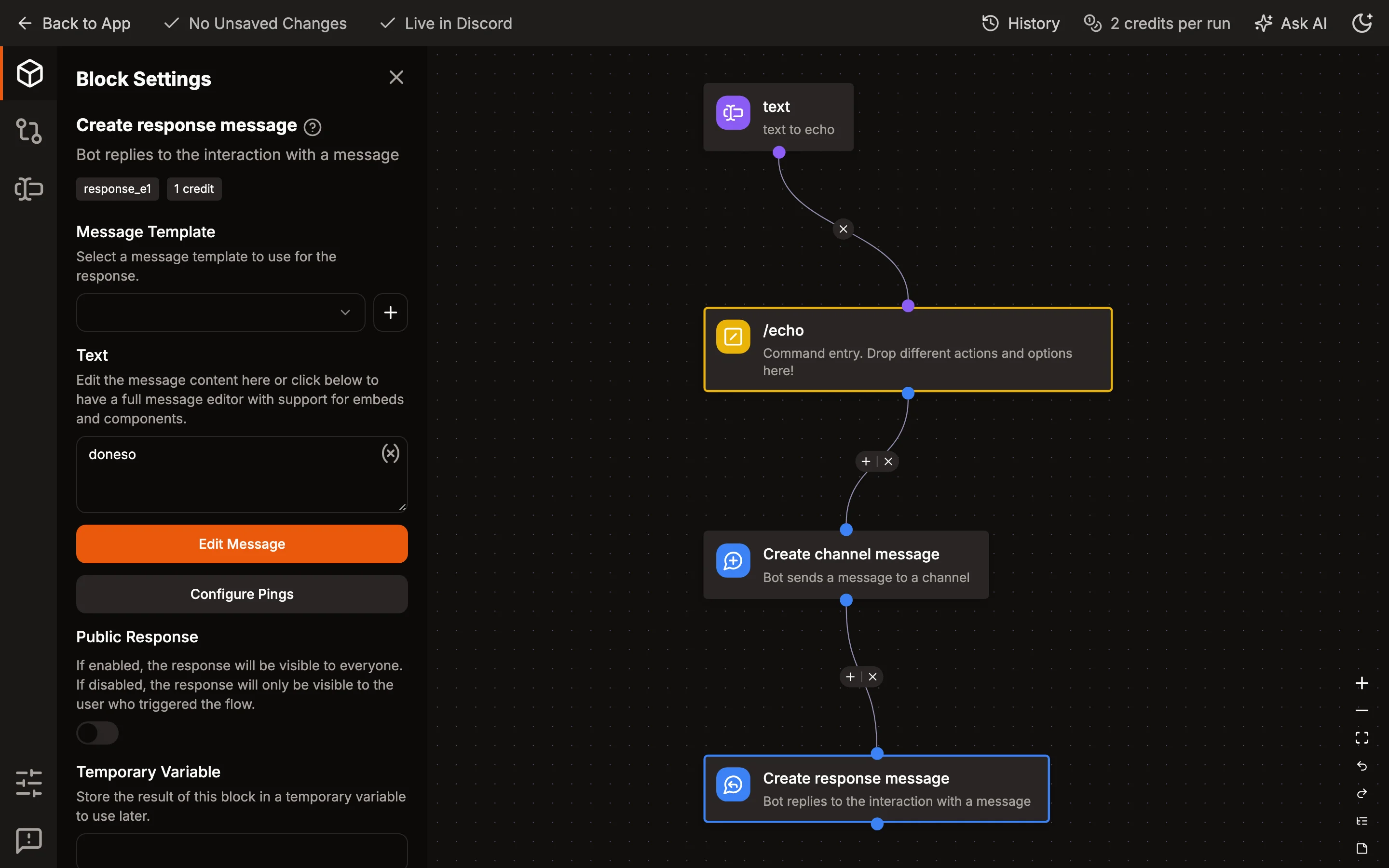
Discord requires interactions (slash commands, modals & buttons) to compulsorily have a "response" otherwise, it shows a red alert on your screen saying "This interaction failed." even if your command works as expected. To prevent this, we use the Create Response block.
- Add the Create Response Message block after the previous block.
- In the response field, type anything acknowledging that the user's command is successful. (for eg. "doneso")
- Scroll down on the block settings, and turn off the "Public Response" to make it visible only to the user who ran the command.
Saving your command
- Click Save changes at the top of your page. Kite adds the command to Discord a few seconds later.
- Voilà! You've created your first command.
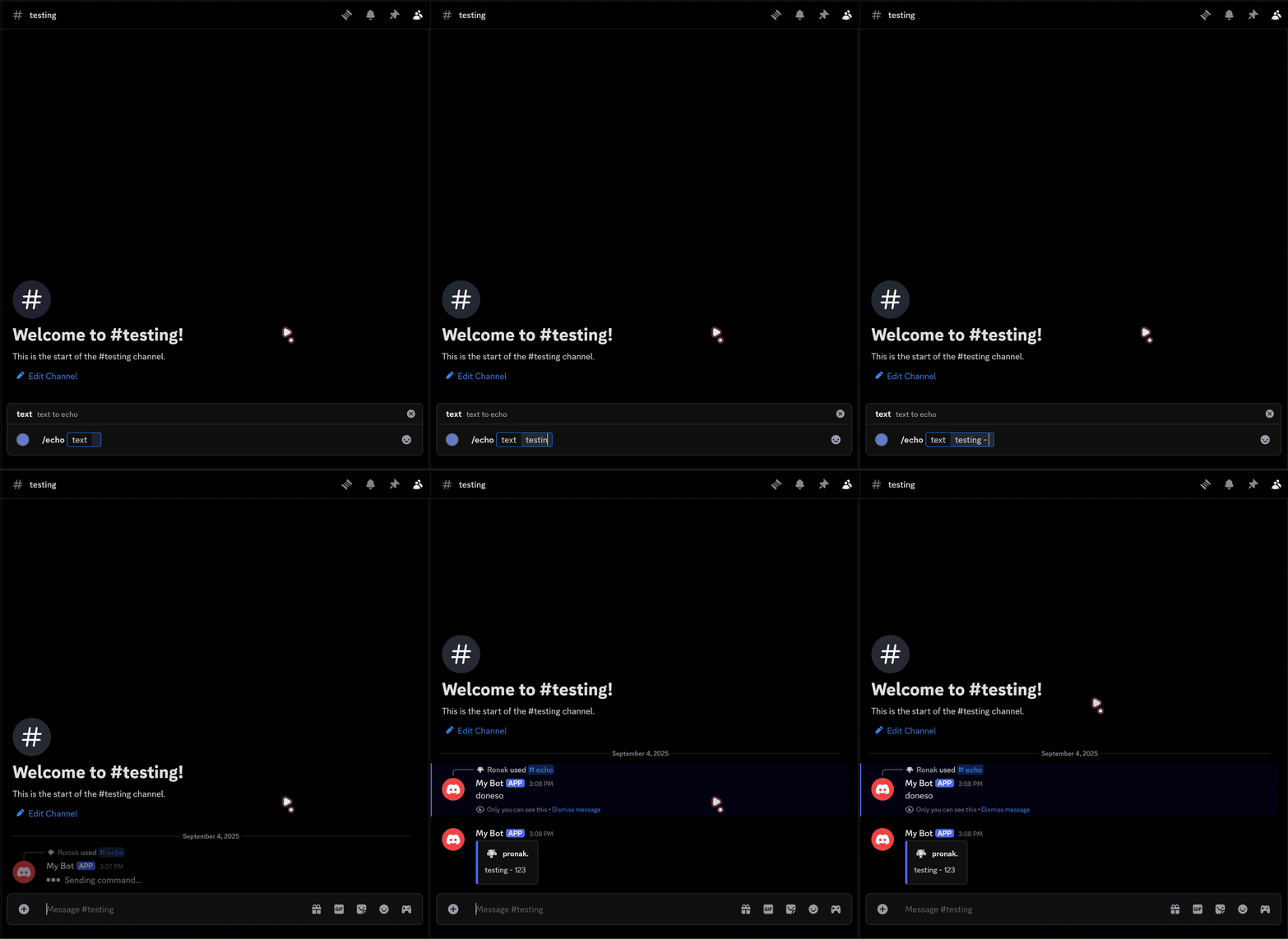
- Refresh your Discord client and run the command in your server.
tip
You can add the Command Permissions block alongside your arguments block to restrict command usage to users with certain permissions.